First Response to Data Loss: What to Do in the First 10 Minutes
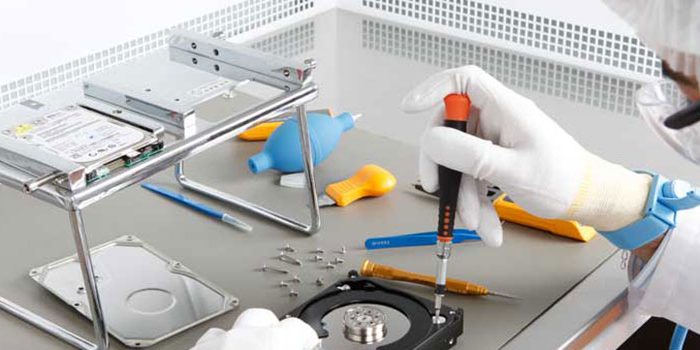
Across thousands of cases that have reached our lab over more than twenty years, one thing keeps repeating: what decides the fate of the data is usually not the failure itself but what gets done in the first few minutes after it. Plenty of drives that were fully recoverable became unrecoverable because of a panicked wrong move. This guide covers what to do in those critical first 10 minutes — and, more importantly, what not to do.
First, understand why the data is still there
When you delete a file or a drive fails, in most cases the data itself is still on the disk. Deleting usually just marks the area as "free"; formatting works much the same way. Data is truly lost only when something new is written over it, or when physical damage destroys the platters or cells. Every first-response rule exists to stop those two risks: stop the writing, do not enlarge the damage.
What to do in the first 10 minutes
1. Power the device down. If you suspect a physical failure (clicking noise, the drive is not detected, it was dropped), do not shut down normally — hold the power button or pull the plug. A failing drive that keeps spinning damages itself every second.
2. Do not try to turn it on again. "Let me try once more, maybe it will boot" is the sentence we hear most often in the lab, and the habit that causes the most damage. A drive with a damaged head scratches the platter surface on every start, shrinking the recoverable area.
3. After an accidental deletion or format, stop using the device. Browsing the web, taking a photo, even the operating system's background updates can write over the deleted data. If it is a phone, put it in airplane mode and switch it off; if it is a computer, shut it down.
4. Write down the symptoms. What happened (a drop, a power cut, a virus, a deletion), what the device sounds like (clicking, grinding, silence), which error appeared on screen? This information shortens the analysis considerably. For error codes, see our hard disk error codes guide.
5. Package the device properly. Put the drive in an antistatic bag (or wrap it in clean paper), then box it with foam protection. Do not try to dry a device that got wet and do not put it in a bag of rice — send it damp, in a sealed bag.
6. Get it to a professional. You can bring the device to our data recovery laboratory in person or ship it to us. Analysis is free, and nothing is done without your approval.
What you should never do
Do not download and install recovery software. The program writes to the drive it is installed on — it can land on top of the data you are trying to recover. Recovery software is only safe when it is installed on a different drive and the failing drive is attached read-only, which takes expertise.
Do not run repair tools such as chkdsk or fsck. While "repairing" the file system, these tools can make data loss on a failing drive permanent. They are especially dangerous on a drive that is reporting S.M.A.R.T. warnings.
Do not open the drive. The inside of a hard disk is manufactured dust-free; a single speck of dust landing on the platters of a drive opened at home causes a head crash. A drive may only be opened in a clean room (Class 100) environment.
Do not try internet myths such as the freezer, tapping or shaking. These methods caused permanent damage even on older drives; on modern ones, condensation also destroys the electronics board.
Do not keep plugging it into different computers. Every connect-disconnect risks the failing electronics damaging a healthy computer, or a healthy computer damaging the failing drive.
Quick notes by device type
SSD/NVMe: because of TRIM, deleted data survives far less time than on a hard disk — minutes matter, power the device down immediately. Phone: airplane mode, then switch it off; ignore any advice to "reset the phone". RAID/NAS/Server: do not pull the disks, do not change their order, do not start a rebuild — on a degraded array a rebuild can wipe the data entirely. See our RAID data recovery page for details.
Share this guide: you are welcome to cite this page in your own writing or pass it to your organisation's IT team. In an emergency: +90 212 916 12 22 — contact page.