What Does “HDD Abnormal” Mean? Drive Errors on a Camera Recorder and How to Fix Them
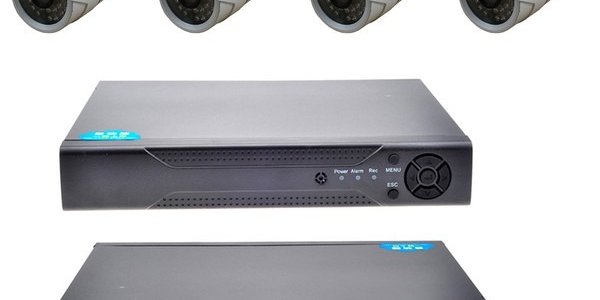
The “HDD Abnormal” warning does not come from a computer — it comes from a CCTV recorder (a DVR or an NVR). On Hikvision units and on recorders using the same interface, the drive status on the storage screen shows as Abnormal. The device often sounds an audible alert at the same time and, more to the point, recording may have stopped.
What it means, in short: the recorder cannot read from and write to the hard drive properly. The cause may be as simple as a cable or as serious as a dying drive. What you should do next hangs on a single question: do you need the footage on that drive?
Where does the warning appear?
In the recorder's menu, the Storage screen (on some versions HDD or Storage Device) lists the drives and the status of each one. A healthy drive reads “Normal”; a drive put on standby may read “Sleeping”, which is not a fault. A newly fitted drive that has not yet been prepared reads “Uninitialized”. “Abnormal” means the device is getting errors when it tries to reach the drive. Menu names vary a little between firmware versions and translations, but the screen is the same.
The most common causes
1. A loose or worn cable. Recorders usually sit in cabinets, in hot places with vibration. The SATA data cable or the power cable develops a bad contact over time.
2. An underpowered adapter. An ageing 12 V adapter cannot supply the drive with enough current; the drive starts to spin, stops, and tries again. Because the unit itself looks powered on, most people never suspect the adapter.
3. The drive itself. Bad sectors, a weakening read head, a firmware problem. A drive in a recorder writes 24 hours a day; that load puts in months the work a desktop drive would see over years. A desktop drive never designed for surveillance wears out far sooner at this pace.
4. A power cut or a surge. Power lost mid-write can leave the file system inconsistent, and the device cannot recognise the drive when it comes back up.
5. An incompatible drive. If the drive fitted is larger than the recorder supports, or is not on its compatibility list, the status can read “Abnormal” from day one.
First, ask this: do you need the footage?
Almost every fix you will find online, and every manufacturer walkthrough, reaches a step that says format (initialize) the drive. That step erases all the footage. A theft, an accident, a workplace injury, a dispute — in any situation where you might need one of those recordings, do not take that step. Not once.
The second risk is overwriting. Recorders write in a loop: once the drive is full, the oldest footage is written over. If the drive recovers for a while and recording picks up where it left off, the older footage you need can be gone within hours. If the footage matters, switch the recorder off.
If you do not need the footage: step by step
1. Switch the unit off and unplug it. Open the case, unplug and refit the drive's SATA and power cables; replace the SATA cable if you can.
2. Power the unit up and check whether the status on the Storage screen has gone back to “Normal”.
3. If it has not, replace the power adapter with a new one of the same voltage and at least the same current rating, and try again.
4. If it still reads “Abnormal”, initialize (format) the drive from the device. This step erases the footage.
5. If the error comes back even after formatting, the drive is faulty — replace it. When choosing the new one, pick a model built for surveillance recorders; we covered which series are designed for this work in our article on the best hard disks.
If you do need the footage: what to do, and what not to
Do not format. Not from the device, not from anywhere else.
Do not connect the drive to a computer and try to open it. Recorders use their own proprietary file systems. Windows will not recognise the drive and will say you need to format it before you can use it. Clicking “Yes” in that dialog is the fastest way to lose the footage.
Keep the recorder switched off. It is the only certain way to stop the risk of overwriting.
Get the drive (or the unit with the drive in it) to a laboratory. A bit-for-bit copy of the drive is taken first, the recording format is decoded, and the video stream is extracted from the copy; nothing is written to the original. Footage that has not been overwritten can usually be recovered; what decides the outcome is the physical condition of the drive and how much was written over it in the meantime. We describe the process in detail on our DVR and CCTV data recovery page.
If the footage is going to be used as evidence in a case, it also starts to matter who took the drive, when, and under what conditions. In that situation, have a look at our article on expert opinions as well.
Frequently asked questions
Can I turn the audible alert off?
Yes. In the recorder's exception settings, the audible alert for an HDD error can be switched off. That does not fix the problem, though; once the beeping stops, the device is most likely still not recording.
The drive is new but still shows “Abnormal”.
Check first whether the drive was initialized from the device, then whether its capacity is below the maximum the unit supports. On a new drive those two usually explain it.
If the drive has failed completely, can the footage come back?
A drive that will not spin, or is not recognised at all, does not mean the data is gone. With a read head or a board failure, the footage is usually still on the platters; recovery is done by replacing parts in a clean room environment. The odds drop if the platters are scratched or the footage has been overwritten.
If the footage matters, do not rush — switch the unit off. Analysis is free and nothing is done without your approval. Phone: 0212 916 12 22 · contact page